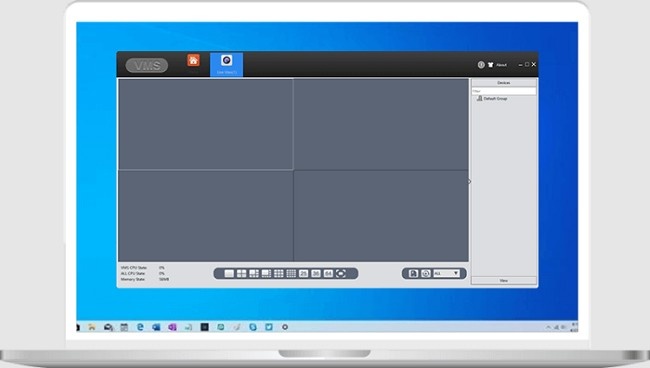
How to Connect & Monitor Cameras Using XMEye App?
Security is a top priority in today’s world, and having a reliable surveillance system is essential. XMEye cameras, designed for use with XMEye software, provide a seamless and advanced solution for monitoring your surroundings. These cameras integrate cutting-edge technology with user-friendly features to cater to both personal and professional security needs.
This article provides an in-depth look at XMEye cameras, including their features, setup process, and tips for optimal use, helping you make an informed decision about your security solutions.
What Are XMEye Cameras?
XMEye cameras are advanced surveillance devices designed to work seamlessly with the XMEye software ecosystem. These cameras, compatible with IPCs (Internet Protocol Cameras) and DVRs (Digital Video Recorders), enable users to monitor and manage their security systems remotely. With capabilities such as live video streaming, motion detection, and cloud storage integration, XMEye cameras are a preferred choice for modern surveillance needs.
Key Features of XMEye Cameras
High-Definition Video Quality
Captures sharp and detailed footage, even in low-light conditions.
Wide-Angle Lens
Covers a broader area, reducing the number of cameras needed for full surveillance.
Night Vision Capabilities
Infrared sensors provide clear video even in complete darkness.
Motion Detection and Alerts
Automatically sends notifications when unusual movement is detected.
Two-Way Audio
Built-in microphones and speakers allow for real-time communication through the camera.
Cloud and Local Storage Options
Choose between secure cloud storage or local SD card recording for storing footage.
Weatherproof Design
Many XMEye cameras are designed to withstand outdoor elements, making them suitable for indoor and outdoor use.
Seamless Integration with XMEye App
Easily control and monitor cameras through the XMEye app on your smartphone, tablet, or PC.
Types of XMEye Cameras
Dome Cameras
Compact and discreet, ideal for indoor use.
Bullet Cameras
Durable and weatherproof, perfect for outdoor settings.
PTZ Cameras (Pan-Tilt-Zoom)
Allow for remote control of camera movement and zoom for detailed monitoring.
Wireless Cameras
Provide flexibility in placement without the need for extensive cabling.
Wired Cameras
Offer stable connections, ideal for permanent installations.
How to Choose the Right XMEye Camera for Your Needs?
Location
For outdoor monitoring, select weatherproof models. Indoor settings might benefit from compact dome cameras.
Coverage Area
Use wide-angle or PTZ cameras for larger spaces.
Connectivity
Decide between wired and wireless options based on installation convenience and stability.
Additional Features
If communication is essential, opt for cameras with two-way audio.
Budget
Choose a camera that balances your security needs with your budget.
How to Set Up XMEye App to Camera?
Step 1: Installation
Mount the camera securely at the desired location.
Ensure the camera has a clear field of view and is protected from extreme weather if outdoors.
Step 2: Power and Connectivity
Connect the camera to a power source.
For wired cameras, link them to the DVR or router. Wireless models require connection to a stable Wi-Fi network.
Step 3: Download the XMEye App
Install the XMEye app on your smartphone or tablet.
Step 4: Add the Camera to the App
Open the app and register or log in.
Add the camera using its serial number or QR code.
Step 5: Configure Settings
Adjust video resolution, motion detection sensitivity, and notification preferences.
Advantages of Using XMEye Cameras
Enhanced Security
Real-time monitoring and alerts ensure you stay informed about potential threats.
User-Friendly Operation
Easy setup and intuitive controls make it accessible to non-technical users.
Remote Accessibility
Monitor your property from anywhere using the XMEye app.
Scalability
Add multiple cameras to expand your security system as needed.
Cost-Effective
Offers high-end features at an affordable price.
Common Applications of XMEye Cameras
Home Security
Monitor entry points, driveways, and common areas to protect your family and belongings.
Business Surveillance
Secure offices, retail stores, and warehouses against theft and vandalism.
Public Spaces
Enhance safety in parks, parking lots, and other public areas.
Event Monitoring
Use XMEye cameras to record and oversee large gatherings or special events.
Troubleshooting XMEye Cameras
1. Connection Issues
Problem: The camera is not connecting to the app.
Solution: Ensure the camera is powered on and connected to a stable network. Restart the device or re-add it to the app if necessary.
2. Blurry Video
Problem: The footage is not clear.
Solution: Clean the camera lens and adjust the video resolution in the app settings.
3. Motion Alerts Not Working
Problem: No notifications for detected motion.
Solution: Check motion detection settings and ensure notifications are enabled.
4. Camera Offline
Problem: The camera shows as offline in the app.
Solution: Verify the camera’s network connection and restart the router if needed.
5. App Sync Delays
Problem: Changes made in the app don’t reflect on the camera.
Solution: Update the app to the latest version and ensure the camera firmware is up-to-date.
Tips for Maximizing XMEye Camera Performance
Regular Maintenance
Clean the camera lens and check for physical damage regularly.
Optimize Placement
Install cameras at strategic locations for maximum coverage and effectiveness.
Secure Your Network
Use a strong password and update your router firmware to protect against unauthorized access.
Test Motion Detection Settings
Adjust sensitivity to avoid false alerts from pets or wind-blown objects.
Monitor Storage Usage
Regularly back up and clear old footage to ensure sufficient storage for new recordings.
FAQs About XMEye Cameras
1. Are XMEye cameras compatible with third-party apps?
XMEye cameras are primarily designed to work with the XMEye app for optimal performance.
2. Can I use XMEye cameras without an internet connection?
Yes, local recording is possible with SD cards, but remote access requires internet connectivity.
3. What is the typical storage capacity for XMEye cameras?
Storage depends on the model; most support SD cards up to 128GB or cloud storage options.
4. Do XMEye cameras support audio recording?
Many models have built-in microphones for audio recording and two-way communication.
5. How do I update the camera firmware?
Updates can usually be applied through the XMEye app. Follow the on-screen instructions for updates.
Conclusion
XMEye cameras offer a robust, scalable, and affordable solution for modern surveillance needs. With their advanced features, user-friendly setup, and seamless integration with the XMEye app, these cameras are perfect for both residential and commercial use. Whether you’re looking to secure your home, monitor a business, or enhance safety in public spaces, XMEye cameras provide the reliability and functionality you need.
Choose XMEye cameras today and experience peace of mind knowing your property is protected by state-of-the-art technology.