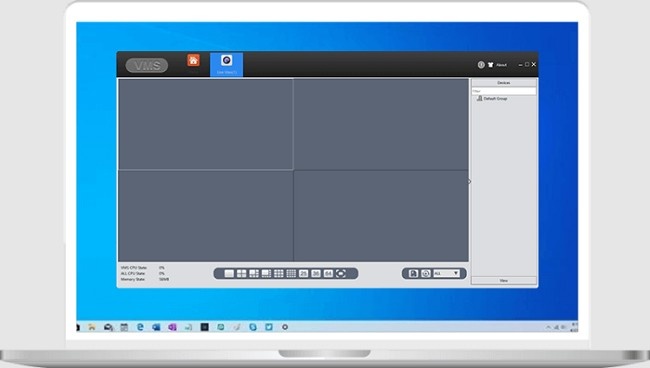
How to Download XMEye App on Your Computer?
Security and surveillance have become vital in today’s world, with technology offering innovative solutions for enhanced monitoring. Among these is XMEye for Computer, a powerful desktop-based platform designed for managing surveillance systems. Whether you’re monitoring a home, office, or business, XMEye on your computer provides a stable and feature-rich interface for seamless control.
This comprehensive guide delves into everything you need to know about XMEye for computers, from its features and installation process to troubleshooting and usage tips.
What is XMEye for PC?
XMEye for Computer is a desktop application that enables users to manage and monitor IP cameras (IPCs) and DVR systems directly from their PCs. It provides functionalities such as real-time video streaming, playback of recorded footage, motion detection alerts, and more. By leveraging a computer’s larger screen and processing capabilities, XMEye ensures a more robust and detailed surveillance experience.
Key Features of XMEye for Computer
Live Video Monitoring
Stream real-time footage from multiple cameras simultaneously.
Multi-Channel Support
View feeds from multiple devices on a single screen.
High-Resolution Playback
Replay recorded videos in crisp HD quality.
Motion Detection Notifications
Get alerts on your computer for any unusual activity detected by the cameras.
Customizable Layout
Arrange camera views to suit your preferences and monitoring needs.
Two-Way Audio Support
Communicate through compatible cameras directly from your computer.
Snapshot Functionality
Capture still images from live or recorded video streams.
Secure Login and Data Encryption
Protect your data with advanced security protocols.
Remote Access
Manage cameras remotely by linking them to your computer via the internet.
System Requirements for XMEye on PC
To use XMEye on your computer effectively, ensure your system meets the following minimum requirements:
Operating System: Windows 7/8/10 or macOS 10.12 and above.
Processor: Dual-core CPU or better.
RAM: 4GB or higher.
Storage: At least 500MB free disk space.
Network: Stable internet connection for remote access.
How to Install XMEye for Computer?
For Windows Users:
Download the Software
Visit the official XMEye website or a trusted source to download the PC version of XMEye.
Run the Installer
Double-click the downloaded file and follow the on-screen instructions to complete the installation.
Launch the Application
Open XMEye from your desktop or Start menu.
Log In or Register
Enter your credentials or create a new account if you’re a first-time user.
Add Devices
Connect your cameras or DVRs by entering their serial numbers or scanning QR codes.
For Mac Users:
Check Compatibility
Ensure your macOS version supports XMEye.
Download the Mac Version
Obtain the XMEye DMG file from the official site or a verified source.
Install the Application
Drag the XMEye icon to the Applications folder and complete the installation.
Launch and Configure
Open XMEye, log in, and start adding your devices for monitoring.
Advantages of Using XMEye on PC
Larger Display
Monitor multiple cameras in greater detail on a larger screen.
Enhanced Functionality
Desktop versions offer advanced features not always available on mobile apps.
Stable Performance
Computers provide more processing power for smooth video playback and multitasking.
Ease of Management
Centralized control for multiple devices simplifies large-scale monitoring setups.
Data Backup and Storage
Save footage directly to your computer’s hard drive for easy access and review.
Troubleshooting Common Issues with XMEye on Computer
1. Unable to Add Devices
Problem: The camera or DVR doesn’t appear in the app.
Solution:
Check the device's network connection.
Ensure the serial number is correctly entered.
Restart the camera and try again.
2. Video Feeds Not Loading
Problem: Blank or frozen video streams.
Solution:
Verify your internet connection.
Update the XMEye software to the latest version.
Check firewall settings that might block the app.
3. Login Errors
Problem: Cannot log into the app.
Solution:
Reset your password.
Ensure your account credentials are correct.
4. Poor Video Quality
Problem: Blurry or pixelated video streams.
Solution:
Adjust the video resolution in the app settings.
Close background applications to free up system resources.
5. App Crashes
Problem: XMEye shuts down unexpectedly.
Solution:
Reinstall the software to fix corrupted files.
Check for system updates that might affect compatibility.
FAQs About XMEye for PC
1. Can I use XMEye on multiple computers?
Yes, you can log into your account on different computers, but simultaneous logins may be restricted.
2. Does XMEye for Computer work offline?
XMEye can operate offline for local recordings but requires an internet connection for remote access.
3. Is the software free?
XMEye for Computer is free to download, with optional paid features like cloud storage.
4. Can I control PTZ cameras from the desktop app?
Yes, XMEye allows pan, tilt, and zoom control for compatible cameras.
5. How often should I update the software?
Regular updates are recommended to ensure security and access to the latest features.
Tips for Optimizing XMEye on a Computer
Use a Dual-Monitor Setup
Expand your monitoring capabilities with a dual-screen arrangement.
Secure Your Network
Use strong passwords and encrypted connections to prevent unauthorized access.
Schedule Regular Backups
Automate the saving of recordings to an external drive or cloud service.
Keep Software Updated
Ensure you’re running the latest version of XMEye for optimal performance and security.
Test Camera Placement
Adjust angles and lighting for the best possible video quality.
Conclusion
XMEye for Computer is a powerful tool for managing and monitoring your surveillance systems efficiently. Its advanced features, such as multi-channel support, high-resolution video playback, and remote access, make it an ideal solution for both home and business security setups. With proper installation, maintenance, and optimization, XMEye on your computer ensures a seamless and reliable surveillance experience.
Equip your PC with XMEye today and take control of your security like never before!