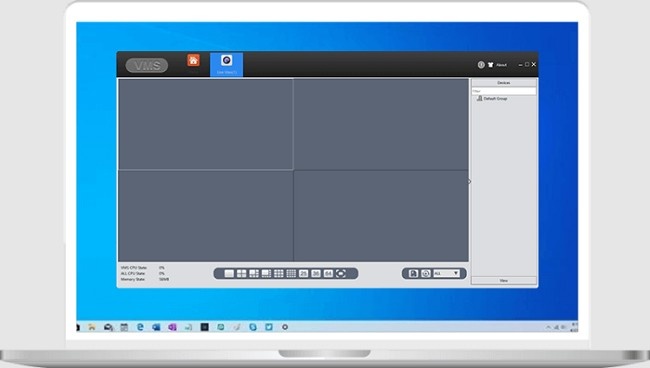
XMEye App - Download for Andriod iOS & PC
XMeye is a robust video surveillance software designed to provide remote access to IP cameras, DVRs, and NVRs. Whether you're a homeowner monitoring security cameras or a business managing multiple systems, XMeye simplifies surveillance by offering easy-to-use features and cross-platform compatibility. This article will walk you through everything you need to know about XMeye, including its features, downloading process, installation steps, and frequently asked questions.
What is XMeye?
XMeye is a cloud-based video monitoring application primarily used for viewing and controlling security cameras remotely. Developed by Hangzhou Xiongmai Technology, XMeye supports various devices like IP cameras, digital video recorders (DVRs), and network video recorders (NVRs). The application is widely recognized for its user-friendly interface, efficient performance, and compatibility with Android, iOS, and PC platforms.
Key Features of XMeye
Real-Time Video Streaming: Access live feeds from your connected cameras.
Playback Functionality: Review recorded footage easily with an intuitive timeline.
Remote Access: Monitor your cameras from anywhere in the world using the internet.
Cloud P2P Connectivity: Simplifies configuration by avoiding the need for port forwarding.
Multi-Device Support: Manage multiple cameras or systems within a single app.
User-Friendly Interface: Intuitive controls and simple navigation.
Motion Detection Alerts: Get notified instantly of any unusual activities.
Cross-Platform Compatibility: Available on Android, iOS, and Windows.
How to Download XMeye App on Android, iOS & PC
Follow these steps to download XMeye on your preferred device:
For Android Devices
Open the Google Play Store on your Android device.
Search for "XMeye" using the search bar.
Select the app from the results and click Install.
Wait for the download to complete, and the app will automatically install.
For iOS Devices
Launch the App Store on your iPhone or iPad.
Type "XMeye" in the search bar.
Tap Get next to the app and verify your Apple ID if required.
The app will download and install on your device.
For Windows PC
Visit the official XMeye website or a trusted third-party site offering the Windows version.
Download the setup file compatible with your operating system.
Run the downloaded file and follow the installation wizard.
How to Setup XMeye App?
Step 1: Launch the App
Open the XMeye app on your device after installation.
Step 2: Register an Account
For first-time users, click Register and create an account using an email ID.
If you already have an account, log in using your credentials.
Step 3: Add a Device
Click the + Add button.
Choose the type of device you want to connect (IP camera, DVR, or NVR).
Enter the device’s serial number, which is usually found on the hardware or user manual.
Configure the connection settings and test the device.
Step 4: Start Monitoring
Once the device is added successfully, you can start viewing live feeds or access recorded footage.
System Requirements
To ensure smooth functioning, check these minimum system requirements:
For Android:
Android 4.0 or above
At least 100 MB free storage
For iOS:
iOS 9.0 or later
Compatible with iPhone, iPad, and iPod touch
For PC:
Windows 7 or higher
2 GB RAM
Stable internet connection
Benefits of Using XMeye
Cost-Effective: The free app eliminates the need for expensive surveillance systems.
Scalable: Ideal for both small home setups and large-scale industrial applications.
Convenience: Manage your security systems from the palm of your hand.
Cloud Storage Support: Back up recordings securely on the cloud.
Enhanced Security: Motion alerts help detect potential threats instantly.
Tips for Maximizing XMeye’s Efficiency
Stable Internet Connection: Ensure your network has sufficient bandwidth to avoid lags.
Regular Updates: Keep the app updated to access the latest features and security patches.
Organized Camera Setup: Label cameras clearly for quick identification.
Secure Your Account: Use a strong password to protect against unauthorized access.
Common Issues and Troubleshooting
Unable to Connect to the Camera:
Check the device’s serial number.
Ensure your internet connection is stable.
Video Stream Not Loading:
Restart the app or reboot your device.
Check for updates and install them if available.
Forgot Password:
Use the Forgot Password feature to reset your login credentials.
Frequently Asked Questions
Q1: Is XMeye free to use?
Yes, XMeye is free for basic functionality, although additional premium features might require payment.
Q2: Can I use XMeye without the internet?
XMeye requires an internet connection for remote access. However, local monitoring may be possible depending on your setup.
Q3: How many devices can I connect to XMeye?
You can connect multiple devices, but the exact limit depends on your system’s capacity.
Q4: Can XMeye record footage on the cloud?
Yes, XMeye supports cloud storage for recording and playback.
Conclusion
XMeye is an excellent tool for anyone seeking reliable and efficient video surveillance. With its straightforward installation, feature-rich interface, and compatibility across devices, XMeye makes it easier than ever to monitor your security systems. Download XMeye today and enjoy peace of mind with top-notch surveillance at your fingertips.